Introduction
A good IPTV EPG (Electronic Programme Guide) can make IPTV feel much more like traditional television. Instead of scrolling through a long list of channels and guessing what is currently playing, an EPG shows programme names, start times, upcoming shows, and useful programme information in one convenient guide.
For UK IPTV users, getting the EPG settings right is especially important because incorrect time-zone settings can cause programmes to appear at the wrong time.
In this guide, we’ll explain what an IPTV EPG is, how it works, how to set it up, recommended refresh settings, and how to fix common EPG problems.
What Is an IPTV EPG?
EPG stands for Electronic Programme Guide. It is the digital TV schedule displayed inside an IPTV application or compatible device.
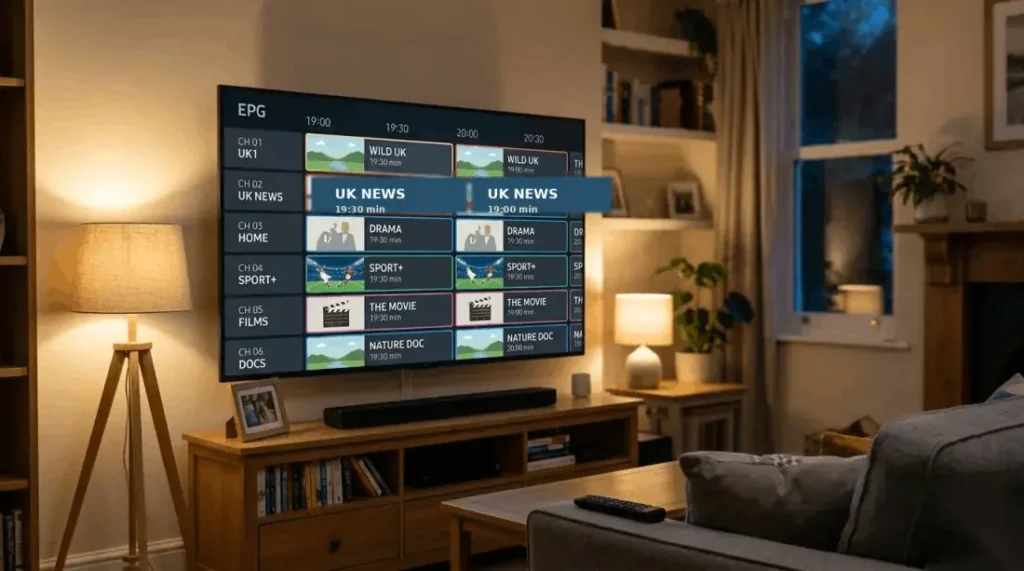
An EPG can show:
- Current programmes
- Upcoming programmes
- Programme start and end times
- Channel names
- Programme descriptions
- Categories and scheduling information
- In some players, recording options
Instead of manually checking each channel, you can open the EPG and browse the entire schedule from one screen.
A typical IPTV EPG uses a grid layout, with channels displayed vertically and programme times running horizontally.
Why Is an EPG Important?
Without an EPG, an IPTV playlist may simply show channel names and streams. You can still watch the channels, but you have much less information about what is currently playing.
An important point is that the EPG is generally separate from the actual video stream. If the EPG stops working, the channels may continue playing normally; you simply lose the programme schedule.
How Does an IPTV EPG Work?
An IPTV provider can deliver programme-guide information in several ways. The exact method depends on the provider, IPTV application, and device.
The three common methods are:
1. EPG Included With an M3U Playlist
Some IPTV M3U playlist contain EPG information or references directly within the playlist configuration.
When you add the playlist to a compatible IPTV player, the application may automatically recognise the EPG information and populate the guide.
This can be convenient because you may not need to enter a separate EPG URL.
2. Separate XMLTV EPG URL
Another common method is a dedicated XMLTV URL.
Your IPTV provider supplies an EPG address separately from your playlist. You enter this URL into the EPG settings of your IPTV application, allowing the player to download the programme schedule.
This approach gives providers and applications more flexibility when updating programme information.
3. EPG Built Into an IPTV Portal
Some portal-based IPTV systems deliver EPG information directly through the service’s portal.
This is common with certain set-top-box and middleware configurations. In these systems, you may not need to manually enter an XMLTV URL because the guide information is handled by the portal.
How to Set Up an IPTV EPG
Although the exact menu names differ between IPTV applications, the general setup process is similar.
Popular IPTV players may place EPG options under areas such as:
- Playlist Settings
- TV Guide
- EPG Settings
- Electronic Programme Guide
- Advanced Settings
Step 1: Get Your EPG URL
If your IPTV provider uses a separate EPG, check your welcome information or account area for a URL labelled:
- EPG
- XMLTV
- TV Guide
- Programme Guide
Your provider should give you the correct address for your subscription.
Step 2: Open Your IPTV Player Settings
Launch your fast IPTV application and find its EPG or TV Guide settings.
The location can vary depending on the application and device.
Step 3: Enter the EPG URL
Copy the EPG URL exactly as provided.
Pay attention to:
httpsorhttp- Spelling
- Slashes
- Ports
- Special characters
- File extensions
Even a small error can prevent the guide from loading.
Step 4: Select a Refresh Interval
Most users do not need to refresh their EPG constantly.
For a typical household, every 24 hours is a reasonable starting point.
Step 5: Save and Refresh
Save the settings and use your player’s Refresh EPG or similar option.
The first download may take longer than subsequent updates, particularly when the EPG contains a large number of channels.
Step 6: Open the TV Guide
Return to the EPG and check whether programme information has appeared.
If the guide is populated with current and upcoming programmes, the setup is working.
Step 7: Check Your Time Zone
For UK viewers, the time-zone setting is particularly important.
Depending on the player, you may need to use GMT/UTC+0 during standard time and account for British Summer Time (BST) when applicable.
If programmes appear one hour ahead or behind, the time-zone configuration should be one of the first things you check.
Best IPTV EPG Refresh Settings
The ideal refresh interval depends on how frequently you use IPTV and how often programme schedules change.
| Viewing Pattern | Recommended Refresh | Reason |
|---|---|---|
| Daily evening viewer | Every 24 hours | Good balance between freshness and data usage |
| Frequent sports viewer | Every 12 hours | Useful when schedules or fixtures change |
| Occasional viewer | Every 48 hours | Usually sufficient for casual use |
| Multiple-device household | Every 24 hours | Keeps schedules reasonably current |
For many users, 24 hours is a practical default.
If your IPTV player allows scheduled updates, an overnight refresh can also be convenient because the device is less likely to be actively used.
Common IPTV EPG Problems and How to Fix Them
EPG problems are usually related to incorrect URLs, time zones, channel mapping, outdated data, or compatibility between the player and EPG format.
Here are the most common issues.
1. IPTV EPG Is Completely Empty
If the EPG contains no information at all, start by checking the EPG URL.
Make sure:
- The URL is correct
- There are no missing characters
- The URL was copied completely
- Your device has an active internet connection
- The EPG source is currently available
Then perform a manual EPG refresh.
2. IPTV EPG Shows the Wrong Time
This is one of the most common issues for UK users.
If programmes are consistently one or more hours out, check:
- Device time zone
- IPTV player time zone
- EPG time-zone settings
- Automatic daylight-saving settings
Make sure the player and EPG are configured consistently.
A mismatch between the EPG’s time zone and the device’s settings can make the entire schedule appear shifted.
3. Only Some Channels Have EPG Data
If some channels display programme information while others remain blank, the problem may be channel mapping.
The playlist and EPG use channel identifiers to connect programme information with individual channels. If those identifiers do not match, IPTV EPG Setup Guide the player may be unable to display the schedule.
In this situation, contacting your IPTV provider is often the best solution.
4. IPTV EPG Is Several Hours Behind
If the guide was previously working but now shows outdated programmes, your IPTV player may have cached an older version.
Try:
- Open EPG settings.
- Perform a manual refresh.
- Restart the IPTV application.
- Check the EPG source.
- Increase the refresh frequency temporarily if necessary.
If the source itself has not been updated, refreshing the player may not resolve the issue.
5. EPG Works on One Device but Not Another
Different IPTV applications support different EPG formats and configurations.
For example, one player may handle compressed XMLTV data differently from another.
If the EPG works correctly on your Smart TV but not on your streaming device, compare:
- EPG URL
- Player settings
- Time zone
- Supported EPG format
- Playlist configuration
This can help identify whether the issue is with the provider or the individual application.
6. IPTV Player Crashes When Opening the EPG
A very large EPG file can sometimes place additional demands on lower-powered devices.
If your application crashes or becomes extremely slow when opening the guide, try:
- Reducing the EPG data range
- Removing unnecessary channels
- Clearing the application’s cache
- Restarting the device
- Using a lighter IPTV player
- Updating the IPTV application
This can be particularly useful on entry-level streaming hardware.
IPTV EPG vs Catch-Up TV vs VOD
These features are often confused because they are all related to television content, but they serve different purposes.
| Feature | What It Provides | What You Can Watch |
|---|---|---|
| EPG | Programme schedule | Live/current programming |
| Catch-Up TV | Previously broadcast programmes | Selected past programmes |
| VOD | On-demand content library | Movies and series on demand |
The easiest way to remember the difference is:
EPG = schedule
Catch-Up = previously broadcast content
VOD = on-demand library
Whether all three features are available depends on the IPTV service, content rights, application, IPTV EPG Setup Guide and device.
How to Get the Best IPTV EPG Experience
A few simple practices can make your IPTV guide more reliable.
Keep Your IPTV App Updated
Older applications may have compatibility problems with newer EPG formats or services.
Use the Correct Time Zone
For UK viewers, make sure your device and IPTV application handle GMT and BST correctly.
Avoid Unnecessary Refreshes
Refreshing the EPG every few minutes generally provides little benefit. A 12–24-hour schedule is usually more practical.
Remove Unused Playlists
If your IPTV player contains multiple old playlists or EPG sources, IPTV EPG Setup Guide removing unnecessary configurations can make troubleshooting easier.
Test the EPG on Your Main Device
An EPG that works on one device may behave differently on another because of application compatibility.
Choosing an IPTV Service With a Reliable EPG
When comparing IPTV services, don’t look only at the number of channels advertised.
A useful IPTV service should also provide a practical viewing experience, including:
- Reliable channel information
- Accurate programme schedules
- Compatible EPG data
- Regular schedule updates
- Support for your preferred devices
- Clear setup instructions
- Responsive customer support
If you are considering UKTVHub, check the available service information and make sure the subscription and features match your device and viewing requirements.
Frequently Asked Questions
Does Every IPTV Subscription Include an EPG?
No. EPG availability depends on the IPTV provider and subscription.
Some services include programme-guide data as part of the service, while others may provide only channel streams or require a separate EPG source.
Can I Use a Third-Party EPG With IPTV?
Some IPTV players allow users to enter an external XMLTV source.
However, compatibility and channel mapping can be an issue, so the EPG must support the channels and identifiers used by your playlist.
Why Is My IPTV EPG Showing the Wrong Day?
The most likely causes are:
- Incorrect time zone
- Incorrect daylight-saving configuration
- EPG source time-zone mismatch
- Outdated EPG data
Check the time settings on both your device and IPTV player.
How Often Should an IPTV EPG Refresh?
For most users, once every 24 hours is a sensible starting point.
Users who closely follow live sports may prefer more frequent updates, IPTV EPG Setup Guide while occasional viewers may not need daily updates.
Will a Missing EPG Stop IPTV Channels From Playing?
Usually, no.
The EPG is generally separate from the video stream, so a missing programme guide does not necessarily mean that the channels themselves have stopped working.
Can I Record Programmes From an IPTV EPG?
Some IPTV applications support recording directly from the EPG.
The exact functionality depends on the IPTV player, device, available storage, IPTV EPG Setup Guide and whether the relevant stream supports recording.